Getting that truly immersive, three-dimensional audio experience from Dolby Atmos can transform your gaming, movie-watching, and music listening on PC. But how do you know if it's actually working? Are you getting the full height and spatial effects, or just a glorified stereo mix? Verifying active Dolby Atmos playback signals on your PC isn't always as straightforward as a simple pop-up, but with the right checks and settings, you can confirm you're enjoying sound exactly as the creators intended.
This guide will walk you through the essential steps to confirm Dolby Atmos is roaring to life on your Windows machine, alongside practical troubleshooting tips for when the magic just isn't happening.
At a Glance: Confirming Your Atmos Experience
- Check Spatial Sound Settings: Right-click the speaker icon on your taskbar and confirm "Dolby Atmos for Headphones" or "Dolby Atmos for Home Theater" is selected.
- Look for Logos in Content: Play Atmos-enabled content from services like Netflix, Disney+, Tidal, or Xbox games, and watch for the Dolby Atmos badge.
- Run Audio Tests: Use dedicated Dolby Atmos demo tracks or test files to listen for clear spatial positioning and height effects.
- Inspect Device Properties: Dive into your sound device's "Properties" in the Sound Control Panel to ensure Dolby Atmos is configured under the "Spatial sound" tab.
- Keep Drivers Updated: Outdated audio drivers are a common culprit for Atmos not engaging correctly.
The Sound of Innovation: Understanding Dolby Atmos on Your PC
Dolby Atmos isn't just a fancy equalizer setting; it's a revolutionary way to experience sound. Instead of channels, it treats individual sounds—a helicopter whirring overhead, a bullet whizzing past, a specific instrument in an orchestra—as "audio objects." These objects can then be precisely placed and moved in a three-dimensional space, including above and below you, creating an unparalleled sense of depth, realism, and immersion.
On a PC, this technology leverages specialized audio processing to simulate these height and spatial effects, whether you're using compatible headphones or a full home theater setup. But for this magic to happen, every link in the chain—from your operating system and drivers to your media player and playback device—needs to be perfectly aligned. When it isn't, you might simply be hearing a standard stereo or surround sound mix, missing out on the full, enveloping experience.
Building Your Atmos Foundation: System Requirements & Compatibility
Before you even think about verifying playback, ensure your PC is ready to handle Dolby Atmos. Ignoring these foundational elements is like trying to drive a car without an engine—you won't get far.
Operating System Essentials
For Dolby Atmos to function on your computer, you need:
- Windows 10 or 11: Dolby Atmos for Headphones and Home Theater are integrated into these modern Windows versions. If you're running an older OS, an update is your first priority.
The Right Hardware & Software
It's not just about Windows; your entire audio ecosystem plays a role:
- Up-to-Date Audio Drivers: These are the unsung heroes of your sound system. Generic or outdated drivers can completely block Atmos from working. You'll need drivers compatible with Dolby Atmos, typically sourced directly from your PC manufacturer, motherboard manufacturer, or dedicated audio card vendor.
- Dolby Atmos Compatible Audio Output:
- Headphones: While "Dolby Atmos for Headphones" works with virtually any stereo headphones, the spatial effects are significantly enhanced with higher-quality, well-tuned headsets.
- Speakers/Home Theater: For a true Dolby Atmos Home Theater experience, you'll need an Atmos-enabled A/V receiver, soundbar, or speaker system with upward-firing or ceiling-mounted speakers.
- Dolby Access Application: This free app from the Microsoft Store is essential. It enables the Dolby Atmos spatial sound processing on your PC and provides setup guides and demo content.
- Dolby Atmos-Enabled Content: You can't experience Atmos without content encoded for it! This includes:
- Streaming Services: Netflix, Amazon Prime Video, Disney+, Apple TV+, Max (formerly HBO Max), all often feature movies and shows with Atmos soundtracks.
- Music Platforms: Tidal, Apple Music, and Amazon Music Unlimited offer extensive libraries of music mixed in Dolby Atmos.
- Games: Many modern PC games leverage Atmos for enhanced immersion.
- Blu-ray/UHD Discs: Physical media often delivers the highest fidelity Atmos experience.
- Locally Stored Media: Ensure your media player (e.g., VLC, Windows Media Player, PowerDVD) supports Atmos passthrough or decoding.
The Moment of Truth: How to Actively Verify Dolby Atmos Playback
Once your system is prepped, it's time to confirm that Dolby Atmos is indeed active and delivering its signature spatial audio.
1. The Quick Check: Windows Spatial Sound Settings
This is the most direct way to see if Atmos is selected as your spatial sound format.
- Right-click the speaker icon in your system tray (bottom-right corner of your screen).
- Hover over "Spatial sound."
- You should see either "Dolby Atmos for Headphones" or "Dolby Atmos for Home Theater" selected (indicated by a checkmark or dot). If it's greyed out or "Off" is selected, then Atmos isn't currently active.
A quick clarification: This step confirms that Windows thinks Dolby Atmos is the active spatial sound engine. It doesn't guarantee your specific content is playing in Atmos, but it's a critical first step.
2. Immersive Content Playback: Look for the Logos
The most satisfying way to verify Atmos is through the content itself.
- Streaming Services: When playing an Atmos-enabled movie or show on Netflix, Disney+, Amazon Prime Video, etc., look for the Dolby Atmos logo or a clear "Dolby Atmos" label near the title or within the audio settings during playback. This usually appears next to "HDR" or "4K" indicators.
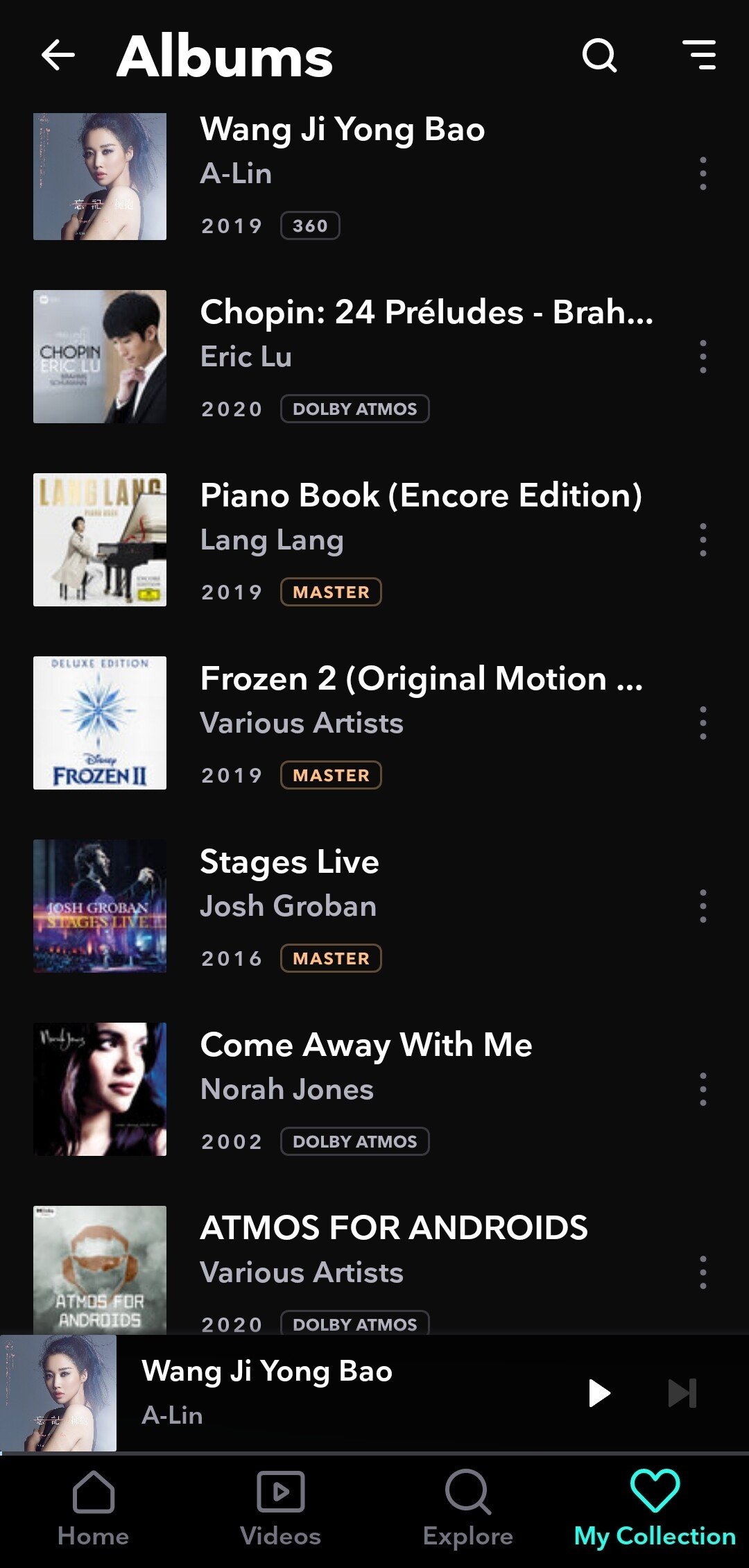
- Music Platforms: On Tidal or Apple Music, look for the Dolby Atmos badge on album art or track descriptions. When playing, the app often explicitly states "Dolby Atmos" on the playback screen.
- Games: Many games will display a Dolby Atmos logo on their title screen, in their audio settings menu, or sometimes even as a splash screen when the game loads. Check the in-game audio options to ensure Dolby Atmos is selected.
If you see these indicators, coupled with the spatial sound setting checked, you're very likely experiencing true Dolby Atmos. Listen carefully for sounds that seem to originate from above, behind, or specifically positioned around you.
3. Dedicated Audio Tests: Trust Your Ears
When in doubt, specialized demo content is your best friend.
- Dolby Access App Demos: The Dolby Access app itself includes several excellent demonstration videos and trailers specifically designed to highlight Dolby Atmos's capabilities. Play these demos and pay close attention to the distinct positioning of sounds—a helicopter flying overhead, rain falling, or specific instruments in a musical piece. If you hear clear, directional, and height-aware audio, your setup is working.
- Online Spatial Audio Tests: Search for "Dolby Atmos test files" or "spatial audio demos" online. Many reputable audio review sites or sound engineering channels provide downloadable clips or YouTube videos designed to showcase the technology. Remember that YouTube's audio compression might affect the absolute fidelity, but the spatial cues should still be evident.
4. Deep Dive: Windows Sound Control Panel
For a more granular look, venture into the classic Sound Control Panel.
- Right-click the speaker icon in the system tray and select "Sounds."
- Go to the "Playback" tab.
- Right-click your active playback device (e.g., your headphones or speakers) and select "Properties."
- Navigate to the "Spatial sound" tab. Here, you should see "Dolby Atmos for Headphones" or "Dolby Atmos for Home Theater" selected from the dropdown menu. Below it, there might be a "Configure" button that opens the Dolby Access app.
- Also, check the "Advanced" tab. Under "Exclusive Mode," ensure all checkboxes are selected. This allows applications to take exclusive control of the audio device, which is often crucial for high-fidelity audio formats like Atmos to function correctly without interference.
This panel confirms the low-level settings are correctly pointing to the Dolby Atmos driver. For a deeper understanding of how these signals behave, you might want to learn more about Atmos signs and what they indicate about your playback chain.
When the Magic Isn't Happening: Troubleshooting Common Dolby Atmos Glitches
Sometimes, despite your best efforts, Dolby Atmos just won't engage. Don't despair; many issues are easily resolved. Here's a structured approach to troubleshooting.
Step 1: Run the Windows Audio Troubleshooter
Windows has built-in tools that can often diagnose and fix common audio problems.
- Windows 10: Open Settings (Windows + I) > Update & Security > Troubleshoot > Additional troubleshooters > Playing Audio > Run the troubleshooter.
- Windows 11: Open Settings (Windows + I) > System > Troubleshoot > Other troubleshooters > Playing Audio > Run.
Follow the on-screen prompts; the troubleshooter might identify a simple fix.
Step 2: Update Windows
An outdated operating system can lead to compatibility issues with new audio technologies.
- In the Windows Search box, type "check for updates" and select "Check for updates."
- Install any available updates and restart your PC. Even minor updates can contain crucial fixes for audio components.
Step 3: Update Your Sound Drivers
This is arguably the most common culprit for Atmos not working. Outdated or corrupted drivers can prevent the Dolby Atmos spatial sound engine from interacting correctly with your hardware.
- Manually via Device Manager:
- Right-click the Start button and select "Device Manager."
- Expand "Sound, video and game controllers."
- Right-click your primary audio device (e.g., Realtek High Definition Audio, NVIDIA High Definition Audio, your specific sound card) and select "Update driver."
- First, try "Search automatically for drivers." If Windows finds nothing, proceed to the next step.
- From Manufacturer's Website: This is often the most reliable method.
- Identify your PC manufacturer (e.g., Dell, HP, Lenovo) or your motherboard manufacturer (e.g., ASUS, MSI, Gigabyte) or your dedicated sound card manufacturer (e.g., Creative, Sennheiser).
- Visit their official support website.
- Navigate to the "Drivers" or "Support" section and search for your specific PC model or motherboard model.
- Download the latest audio drivers compatible with your Windows version.
- Uninstall your current audio drivers from Device Manager (right-click, "Uninstall device," and check "Delete the driver software for this device") and then install the newly downloaded drivers. Restart your PC.
Step 4: Double-Check Windows Exclusive Mode and Spatial Sound Settings
These settings are critical for Dolby Atmos to take priority and function without interruption.
- Right-click the speaker icon in your system tray and select "Sounds."
- Under the "Playback" tab, right-click your active output device (e.g., "Speakers" for your home theater or "Headphones") and select "Properties."
- Go to the "Spatial sound" tab.
- Click the dropdown menu for "Spatial sound format" and select "Dolby Atmos for Headphones" or "Dolby Atmos for Home Theater." Click OK.
- Go to the "Advanced" tab (still within the device's Properties window).
- Under "Exclusive Mode," ensure that both checkboxes are selected: "Allow applications to take exclusive control of this device" and "Give exclusive mode applications priority." This prevents other apps from interfering with Atmos. Click OK.
Step 5: Reinstall Dolby Access
A corrupted installation of the Dolby Access app can prevent Atmos from initializing correctly.
- In the Windows Search box, type "dolby access."
- When "Dolby Access" appears in the results, right-click it and select "Uninstall."
- Once uninstalled, open the Microsoft Store.
- Search for "Dolby Access" and reinstall it.
- Restart your PC after reinstallation.
Step 6: Perform a System Restore (Last Resort)
If Dolby Atmos suddenly stopped working after a recent change or update, a system restore can revert your PC's state to a previous point when it was working correctly.
- In the Windows Search box, type "restore" and click "Create a restore point."
- In the System Properties window, under the "System Protection" tab, click "System Restore..."
- Follow the wizard to choose a restore point from before the problem began.
- Pro-tip: Before doing this, it's wise to create a new restore point as a safety net, just in case. Select your system drive, click "Configure," tick "Turn on system protection," then click "Create" to make a new restore point.
Step 7: General Troubleshooting & Conflicts
- Restart Your PC: The classic "turn it off and on again" can miraculously fix many temporary software glitches.
- Check for Conflicts: Are you running any other audio enhancement software (e.g., Nahimic, DTS Sound Unbound, specific motherboard audio utilities)? These can sometimes conflict with Dolby Atmos. Try disabling or temporarily uninstalling them to see if Atmos begins to work.
- Verify Playback Device: Ensure your desired audio output (headphones, speakers) is set as the default playback device in Windows Sound Settings.
- Contact Support: If all else fails, reach out to Dolby Support or your PC/audio hardware manufacturer's support for more specialized assistance.
Optimizing Your Dolby Atmos Configuration for Peak Performance
Beyond just enabling Atmos, a few tweaks can ensure you're getting the best possible experience.
Fine-Tuning Sound Settings
- Right-click the speaker icon on the taskbar and select "Open Sound settings."
- Under the "Output" section, select your output device.
- Scroll down to "Spatial sound" and ensure "Dolby Atmos for headphones" (or Home Theater) is selected from the dropdown menu.
- For additional enhancements, open the "Sound Control Panel" (you can find a link to this in the Sound Settings window or by searching "Sound Control Panel" in Windows Search).
- Right-click your active output device > Properties > "Enhancements" tab.
- Look for and check the box for "Dolby Atmos for headphones" or a similar Dolby-related enhancement option, if available. (Note: The "Enhancements" tab's content can vary widely depending on your audio hardware and drivers.)
Testing Your Configuration
After making any changes, always re-test with Dolby Atmos-specific sample videos or music tracks. Pay attention to:
- Spatial Awareness: Can you distinctly tell where sounds are coming from in the 3D space?
- Clear Positioning: Are discrete sound elements (like a character's voice, a specific instrument, a gunshot) placed accurately?
- Immersive Quality: Does the overall soundstage feel expansive and enveloping, drawing you into the content?
If you can confidently answer yes to these questions, then your Dolby Atmos setup is likely performing exactly as intended.
Common Questions About Dolby Atmos on PC
"Do I need special headphones for Dolby Atmos for Headphones?"
No, "Dolby Atmos for Headphones" works with any stereo headphones. The technology processes standard stereo output to simulate a spatial, 3D sound environment. That said, higher-quality headphones with a good frequency response and soundstage will generally provide a more convincing and detailed spatial experience.
"Why is Dolby Atmos for Headphones not free?"
Dolby Atmos for Headphones (and Home Theater) requires a license. While the Dolby Access app itself is free to download, enabling the spatial sound feature usually requires a one-time purchase or comes bundled with certain hardware. This license covers the advanced processing required to transform standard audio into an immersive, object-based soundscape.
"Can I use Dolby Atmos with any game or movie?"
You can enable Dolby Atmos spatial sound for any content, and it will attempt to virtualize a 3D soundstage from any stereo or surround source. However, you'll only get the full object-based, height-channel experience with content specifically encoded with Dolby Atmos. For non-Atmos content, it acts as an upmixer, enhancing spatial perception.
"Does Dolby Atmos use more CPU/GPU?"
Dolby Atmos processing does consume some system resources (CPU), but for most modern gaming PCs, the impact is negligible and won't significantly affect gaming performance. The bulk of the heavy lifting is handled by dedicated audio hardware or efficiently by your CPU.
"What's the difference between Dolby Atmos for Headphones and Dolby Atmos for Home Theater?"
"Dolby Atmos for Headphones" is designed for a virtualized 3D experience over two-channel headphones. "Dolby Atmos for Home Theater" is for multi-speaker setups, requiring an Atmos-enabled A/V receiver or soundbar with dedicated height channels (either upward-firing or in-ceiling speakers) to create a physical 3D sound field. The underlying principle is the same (object-based audio), but the delivery method is tailored to the output device.
Your Next Steps to Immersive Audio
Verifying active Dolby Atmos playback signals isn't just about ticking boxes in settings; it's about ensuring you're truly experiencing the cutting-edge audio technology you paid for. By consistently checking your Windows spatial sound settings, looking for explicit Atmos indicators in your content, and running dedicated audio tests, you can have confidence that your PC is delivering sound with unparalleled depth and realism.
If you encounter issues, systematically work through the troubleshooting steps – starting with driver and Windows updates, and then diving into specific sound settings. With a bit of patience, you'll unlock an audio experience that will make your games more engaging, your movies more cinematic, and your music more vibrant. Don't settle for less than the full, immersive soundscape that Dolby Atmos can provide.